

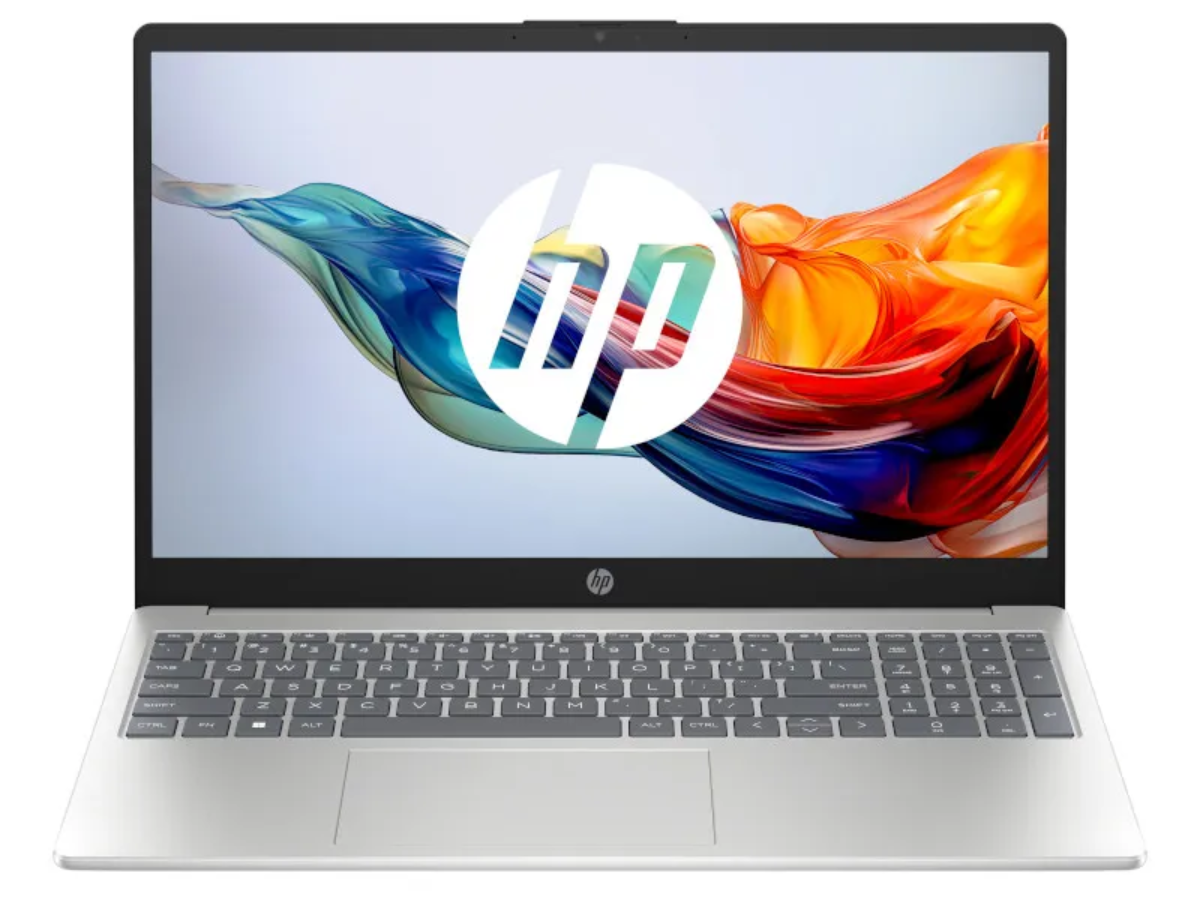
Fortunately, getting into the weeds on specs isn’t necessarily a requirement for finding your ideal HP laptop or computer match. The best device is one that aligns with your daily goals and priorities — be it work, play, streaming, or something else entirely.
This HP computer buying guide breaks down the features that matter most so you can find the right fit for your needs and lifestyle.
Start By Figuring Out What You Need in a Computer
HP computers are built for a wide range of users — students, remote workers, gamers, creatives, and families who simply need a reliable PC at home. So before comparing models, think about your most demanding regular tasks. Someone who primarily browses the web and pays bills online likely won’t need the same computer as someone editing videos or playing graphics-heavy video games.
Consider what you’ll use your computer for in the immediate future and what you may need it to handle over the next few years. From there, you can narrow down the features worth prioritizing.
What to Look for When Purchasing a Computer
You don’t have to memorize a spec sheet to make a smart choice. Instead, we’ll help you translate major HP computer features into what they mean for everyday use.
Processor = How Hard Does Your Computer Need to Work?
The processor, or CPU, handles much of the computer’s general workload, including opening applications, managing spreadsheets, and keeping the system running efficiently. Basic web browsing and everyday productivity don’t require the most powerful processor available. But more demanding activities, such as gaming, video editing, or coding, benefit from higher-performance processors.
Think of it this way: the harder you expect your computer to work, the more attention you should pay to its processor.
RAM = How Much Multitasking Do You Do?
Random access memory (RAM) is the computer’s short-term working space. More RAM helps a PC manage multiple tasks at once without slowing down.
While shopping, you’ll commonly see computers with 8 GB, 16 GB, or sometimes even 32 GB or more of RAM. HP recommends 16 GB of RAM for smooth everyday performance, while 32 GB+ is better suited to heavier multitasking, gaming, and creative work.
Storage = How Much Room Do You Need?
Storage determines how much space you have for applications, documents, photos, videos, games, etc. Most modern laptops use a solid-state drive (SSD) for that storage. Compared with older hard drives, SSDs can access your stored information much quicker, helping your computer start up faster, open programs more quickly, and feel more responsive during everyday use.
HP suggests 256 GB for lighter use, 512 GB for most users, and 1 TB or more for people who keep large media files or install lots of games.
Graphics = Everyday Visuals vs. Gaming Power

Computer graphics hardware helps create the images, videos, animations, and other visuals you see on your screen. For everyday activities, the integrated graphics card built into the computer’s processor is usually enough.
However, for high-intensity use like gaming, video editing, 3D design, and other visually demanding activities, you might need more graphics power. In these instances, a dedicated graphics card (also known as a discrete GPU), may be a good solution. It’s a supplementary graphics card that has its own resources for handling complex visuals that you can connect to your computer. The main benefit of this hardware is that it can take some of the workload off of your computer’s main processor and help demanding games and creative programs run more smoothly.
As an example, the HP Victus 15.6-inch gaming laptop includes a dedicated NVIDIA GeForce RTX graphics card and a 144 Hz Full HD display. The dedicated graphics provide the extra visual processing power needed for gaming, while the higher refresh rate allows the screen to update more frequently. All of which work together to make fast-moving gameplay look smoother.
Display = What Will You Spend the Most Time Looking At?
Several features work together to determine how much you enjoy your overall viewing experience on the screen. Here, it may be more helpful to consider which display features are most ideal for daily activity:
- Screen size: A larger screen gives you more room for documents, spreadsheets, movies, games, or side-by-side windows, while a smaller screen can make a laptop easier to carry.
- Resolution: Ultimately, resolution is the amount of detail a screen can display. You’ll often see terms such as Full HD (1920 × 1080), 2K, or other higher-resolution options. Higher resolutions can make images and videos look sharper and more detailed. Full HD is a common choice for everyday work, school, streaming, and gaming, while higher resolutions may appeal to people who work closely with photos, videos, or other detailed visuals.
- Refresh rate: Measured in hertz (Hz), refresh rate tells you how many times per second the screen can update an image. For example, a laptop that operates at 60Hz can refresh up to 60 times per second. A standard display works well for most everyday activities, while a higher refresh rate can make fast-moving action look smoother, which is especially useful for fast-paced gaming.
A student who carries a laptop around campus may prioritize a manageable screen size, while a gamer may prioritize refresh rate. Someone editing photos or videos might place greater value on resolution and overall image quality.
Touchscreen = How Do You Like to Navigate and Create?
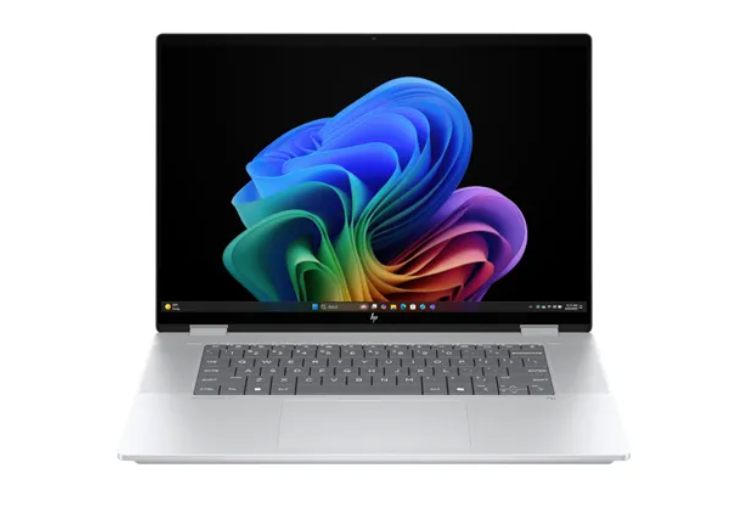
A touchscreen lets you interact with your computer by tapping, swiping, and scrolling directly on the display, rather than relying solely on a mouse or trackpad. It can be convenient for browsing, taking notes, drawing, reviewing documents, or moving through apps.
Some HP computers take that flexibility further. The HP OmniBook X Flip, for example, has a 2-in-1 design, which means you can use it like a traditional laptop or fold the screen back for a more tablet-like experience. That can be especially useful if you want one computer for typing at a desk and more hands-on tasks elsewhere.
Battery Life = How Often Will You Be Away From an Outlet?
If your computer usually stays hooked up on a desk, battery life may not be a major deciding factor. If you carry your laptop between classrooms, meetings, coffee shops, or other locations, a longer-lasting battery can give you more freedom to work without constantly searching for an outlet.
However, you’ll want to keep in mind that advertised battery life is an estimate. How long a laptop actually lasts on a charge can change depending on what you’re doing, your screen brightness, your settings, and other factors.
Some HP OmniBook models are designed with mobility in mind. For example, the Snapdragon X Plus HP OmniBook 5 has a listed battery life of up to 34 hours. That can go a long way if you’re always on the move.
AI Features = What Could You Use a Little Extra Help With?
You may see terms like AI PC or Copilot+ PC while shopping for a new computer. Put simply, these computers include technology that handles certain AI tasks directly on the device. Depending on the computer and software you typically use, AI features can help speed up tasks like searching for information, creating or editing images, translating captions, and improving how you look and sound during video calls.
Several HP OmniBook models offer Copilot+ PCs, which simply means they are AI-integrated. The HP OmniBook 16, for example, combines built-in AI capabilities with 16 GB of memory, a 1 TB SSD, Radeon graphics, and a 16-inch 2K touchscreen.
You don’t necessarily need an AI PC for everyday browsing, streaming, email, or basic school and office work. But if you’re interested in newer Windows AI tools or want a computer designed with these emerging features in mind, it may be worth considering when HP computer shopping.
Which HP Computer Is Right for You?
Use this quick comparison as a starting point when shopping for a new computer for your kid or yourself:
Primary Use |
HP Option to Consider |
Features to Look For |
|---|---|---|
| School | HP 15.6″ Laptop | 16 GB RAM, 512 GB SSD, Full HD display |
| Everyday home use | HP 15.6″ Laptop | 16 GB RAM, 512 GB SSD, Full HD display |
| Remote work & multitasking | HP OmniBook 5 | 16 GB RAM, 1 TB SSD, large display, Copilot+ features |
| Creative work | HP OmniBook 16 | Ryzen AI 7, 16 GB RAM, 1 TB SSD, 2K touchscreen, Radeon graphics |
| Gaming | HP Victus 15.6″ | Dedicated NVIDIA GeForce RTX graphics, 144 Hz Full HD display |
| Flexible laptop/tablet use | HP OmniBook X Flip | 2-in-1 design, 16″ touchscreen, 16 GB RAM, 1 TB SSD |
| Stationary home office | HP desktop | Larger-screen and stationary configurations |
Exact models and availability may vary by location, so check the specifications of the computer you’re considering before making your choice.
Find an HP Computer That Aligns With Your Lifestyle at Rent-A-Center
Whether you’re shopping for a dependable laptop for school, a desktop for your home office, or a high-performance gaming PC on a budget, Rent-A-Center offers a wide selection of HP computers to match your needs. With flexible rent-to-own options and free delivery, it’s easier to bring home the technology you need today.
Browse HP computers online or visit your local Rent-A-Center to find the right fit.